
On the Yellow Bricks blog there was today a very interesting entry called Performance : Thin Provisioning. Besides the link to the excellent VMware document called Performance Study of VMware vStorage Thin Provisioning, Duncan also included some tips and tricks.
Since I’m in favour of automating as much as possible in my vSphere environment, I decided to have a look how all this could be scripted.
Alarm
The following script will create an alarm that will be triggered by the status of two metrics directly related to Thin Provisioning:
- Disk Overallocation
- Disk Usage

The script will define two actions on the alarm:
- Send an email
- Send a SNMP trap
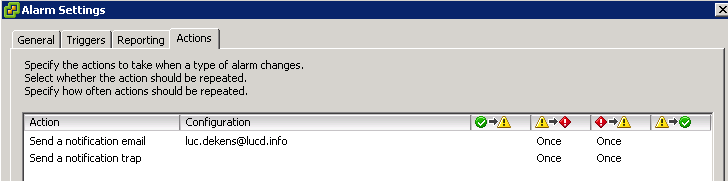
You can of course adapt the triggers and the alarms.
|
1 2 3 4 5 6 7 8 9 10 11 12 13 14 15 16 17 18 19 20 21 22 23 24 25 26 27 28 29 30 31 32 33 34 35 36 37 38 39 40 41 42 43 44 45 46 47 48 49 50 51 52 53 54 55 56 57 58 59 60 61 62 63 64 65 66 67 68 69 70 71 72 73 74 75 76 77 78 79 80 81 82 83 84 85 86 |
$datacenterName = $mailTo = "luc.dekens@lucd.info" $alarmMgr = Get-View AlarmManager $entity = Get-Datacenter $datacenterName | Get-View # AlarmSpec $alarm = New-Object VMware.Vim.AlarmSpec $alarm.Name = "Thin Provisioning" $alarm.Description = "Thin Provisioning alarm by LucD" $alarm.Enabled = $TRUE # Action 1 - Send email $alarm.action = New-Object VMware.Vim.GroupAlarmAction $trigger1 = New-Object VMware.Vim.AlarmTriggeringAction $trigger1.action = New-Object VMware.Vim.SendEmailAction $trigger1.action.ToList = $mailTo $trigger1.action.Subject = "Thin Provisioning Alarm" $trigger1.Action.CcList = "" $trigger1.Action.Body = "" # Transition 1a - yellow --> red $trans1a = New-Object VMware.Vim.AlarmTriggeringActionTransitionSpec $trans1a.StartState = "yellow" $trans1a.FinalState = "red" # Transition 1b - red --> yellow $trans1b = New-Object VMware.Vim.AlarmTriggeringActionTransitionSpec $trans1b.StartState = "red" $trans1b.FinalState = "yellow" $trigger1.TransitionSpecs += $trans1a $trigger1.TransitionSpecs += $trans1b # Action 2 - Send SNMP trap $trigger2 = New-Object VMware.Vim.AlarmTriggeringAction $trigger2.action = New-Object VMware.Vim.SendSNMPAction # Transition 2a - yellow --> red $trans2a = New-Object VMware.Vim.AlarmTriggeringActionTransitionSpec $trans2a.StartState = "yellow" $trans2a.FinalState = "red" # Transition 2b - yellow --> red $trans2b = New-Object VMware.Vim.AlarmTriggeringActionTransitionSpec $trans2b.StartState = "red" $trans2b.FinalState = "yellow" $trigger2.TransitionSpecs += $trans2a $trigger2.TransitionSpecs += $trans2b $alarm.action.action += $trigger1 $alarm.action.action += $trigger2 # Expression 1 - Overallocation $expression1 = New-Object VMware.Vim.MetricAlarmExpression $expression1.Metric = New-Object VMware.Vim.PerfMetricId $expression1.Metric.CounterId = 196 $expression1.Metric.Instance = "" $expression1.Operator = " isAbove" $expression1.Red = 30000 $expression1.Yellow = 10000 $expression1.Type = "Datastore" # Expression 2 - Disk usage $expression2 = New-Object VMware.Vim.MetricAlarmExpression $expression2.Metric = New-Object VMware.Vim.PerfMetricId $expression2.Metric.CounterId = 165 $expression2.Metric.Instance = "" $expression2.Operator = " isAbove" $expression2.Red = 9000 $expression2.Yellow = 7500 $expression2.Type = "Datastore" $alarm.expression = New-Object VMware.Vim.OrAlarmExpression $alarm.expression.expression += $expression1 $alarm.expression.expression += $expression2 $alarm.setting = New-Object VMware.Vim.AlarmSetting $alarm.setting.reportingFrequency = 0 $alarm.setting.toleranceRange = 0 # Create alarm. $alarmMgr.CreateAlarm($entity.MoRef, $alarm) |
Annotations
Line 5: the script defines the alarm on a Datacenter but you can of course change this to another entity (where the alarm makes sense)
Line 20-21: the SendEmailAction seems to require that the CcList and Body properties are explicitly blanked out
Line 23-31, 41-49: I set up the alarm to trigger the actions when going from yellow to red but also from red to yellow. That way you’re informed when the situation goes back to “nearly” normal. You can change this behavior or even add additional transition states.
Line 60, 70: the CounterId properties can be obtained from the PerformanceManager.
eagerZeroedThick
This script will convert an existing thick VMDK to eagerZeroedThick. As you can read in Duncan’s blog entry there is a serious performance improvement to be obtained by doing this.
Note that the guest needs to be powered off to be able to do the conversion ! This is in fact the case for most of the VirtualDiskManager methods. See also my Thick to Thin with PowerCLI and the SDK entry.
|
1 2 3 4 5 6 7 8 9 10 11 12 13 14 15 16 17 18 19 20 21 22 23 24 25 26 27 28 29 30 31 32 33 34 35 36 37 38 39 40 41 42 43 44 45 46 47 48 49 50 |
$vmName = <vm-name> $vCenter = <vCenter-name> $esxAccount = <ESX-account> $esxPasswd = <ESX-password> function Set-EagerZeroThick{ param($vcName, $vmName, $hdName) # Find ESX host for VM $vcHost = Connect-VIServer -Server $vcName -Credential (Get-Credential -Credential "vCenter account") $vmImpl = Get-VM $vmName if($vmImpl.PowerState -ne "PoweredOff"){ Write-Host "Guest must be powered off to use this script !" -ForegroundColor red return $false } $vm = $vmImpl | Get-View $esxName = (Get-View $vm.Runtime.Host).Name # Find datastore path $dev = $vm.Config.Hardware.Device | where {$_.DeviceInfo.Label -eq $hdName} if($dev.Backing.thinProvisioned){ return $false } $hdPath = $dev.Backing.FileName # For Virtual Disk Manager we need to connect to the ESX server $esxHost = Connect-VIServer -Server $esxName -User $esxAccount -Password $esxPasswd # Convert HD $vDiskMgr = Get-View -Id (Get-View ServiceInstance -Server $esxHost).Content.VirtualDiskManager $dc = Get-Datacenter -Server $esxHost | Get-View $taskMoRef = $vDiskMgr.EagerZeroVirtualDisk_Task($hdPath, $dc.MoRef) $task = Get-View $taskMoRef while("running","queued" -contains $task.Info.State){ $task.UpdateViewData("Info") } Disconnect-VIServer -Server $esxHost -Confirm:$false # Connect to the vCenter Connect-VIServer -Server $vcName -Credential (Get-Credential -Credential "vCenter account") if($task.Info.State -eq "success"){ return $true } else{ return $false } } Set-EagerZeroThick $vCenter $vmName "Hard disk 1" |
Annotations
Line 3-4: provide an account and password which can logon to the ESX server and which has root authority
Line 12-14: the guest needs to be powered off to use the function
Line 21-23: the function only works for thick VMDKs. This tests for thin VMDKs and returns immediatly
Line 31: since we’re connected to an ESX server there is only one datacenter with the default name ha-datacenter
Line 32: the core of the function is the EagerZeroVirtualDisk_Task method
As always, please test this thoroughly in your test environment before you use any of this in your production environment !!
fai
Hi,can you tell me the details on how I get trigger from within the Java? because I can’t find on the Vi Java Forum.
ap
Hey can i get VI Java version of the above script ?
Thanks in advance
LucD
I’m afraid I’m a noob what concerns Java.
But why don’t you try on the Vi Java Forum.
Craggar
@LucD
Running ESX 4.1 and still getting the same error:
Exception calling “CreateAlarm” with “2” argument(s): “A specified parameter wa
s not correct.
”
At C:\Scripts\thin_provisioning_alarm.ps1:86 char:22
+ $alarmMgr.CreateAlarm <<<< ($entity.MoRef, $alarm)
+ CategoryInfo : NotSpecified: (:) [], MethodInvocationException
+ FullyQualifiedErrorId : DotNetMethodException
Here is my Expressions:
# Expression 1 – Overallocation
$expression1 = New-Object VMware.Vim.MetricAlarmExpression
$expression1.Metric = New-Object VMware.Vim.PerfMetricId
$expression1.Metric.CounterId = 177
$expression1.Metric.Instance = ""
$expression1.Operator = " isAbove"
$expression1.Red = 30000
$expression1.Yellow = 10000
$expression1.Type = "Datastore"
# Expression 2 – Disk usage
$expression2 = New-Object VMware.Vim.MetricAlarmExpression
$expression2.Metric = New-Object VMware.Vim.PerfMetricId
$expression2.Metric.CounterId = 178
$expression2.Metric.Instance = ""
$expression2.Operator = " isAbove"
$expression2.Red = 9000
$expression2.Yellow = 7500
$expression2.Type = "Datastore"
I found the counterIDs from running the "Metrics" script.
Any help would be appreciated.
joe s
It’s been sent. @LucD
joe s
I’ve tried it on both a 4.0 U1 and a vCenter 4.1, I have to be overlooking something. I just cannot figure out what that is. @LucD
LucD
@Joe Can you mail me the script you’re currently using? Send it to lucd(at)lucd(dot)info
joe s
The ID’s are the same. So I simplified the script a bit and commented out lines 13 thru 36 from the script you posted at September 7th, 2010 at 19:01. Basically eliminating the creation of the email action & triggers. That allowed the alarm to be created without a problem. So I thought I would change the alarm action to SNMP trap (thinking maybe there is something wrong with the email function) that did not work either. So the problem seems to lie in lines 13 thru 36. @LucD
LucD
@Joe. Against which version of vCenter are you running the script ?
I did the test again and the script works without a problem against vCenter 4.0 and 4.1.
joe s
@joe s
@LucD
Same error, driving me crazy!
Exception calling “CreateAlarm” with “2” argument(s): “A specified parameter was not correct.
”
At C:\createAlarmv2.ps1:55 char:22
+ $alarmMgr.CreateAlarm <<<< ($entity.MoRef, $alarm)
+ CategoryInfo : NotSpecified: (:) [], MethodInvocationException
+ FullyQualifiedErrorId : DotNetMethodException
LucD
@Joe. I think I might have found the cause of the problem. The metricIds can change per vCenter.
To get the correct Ids for your environment you can run the “Metrics” script from my Alarm expressions – Part 1 : Metric alarms.
In the resulting CSV file look for the disk.provisioned.latest and the disk.capacity.latest rows. In those rows you will find the MetricIds you will have to use in the script.
Can you give that a try ?
joe s
I must be doing something wrong, even after the change I still receive the same error. Could it be because I modified it to use only one expression?
$datacenterName = “Internal”
$mailTo = “someone@somewhere.com”
$alarmMgr = Get-View AlarmManager
$entity = Get-Datacenter $datacenterName | Get-View
# AlarmSpec
$alarm = New-Object VMware.Vim.AlarmSpec
$alarm.Name = “Datastore usage on disk”
$alarm.Description = “Get Datastore Percent Used”
$alarm.Enabled = $TRUE
# Action 1 – Send email
$alarm.action = New-Object VMware.Vim.AlarmAction
# New Expression 2 – Disk usage
$expression1 = New-Object VMware.Vim.MetricAlarmExpression
$expression1.Metric = New-Object VMware.Vim.PerfMetricId
$expression1.Metric.CounterId = 147
$expression1.Metric.Instance = “”
$expression1.Operator = ” isAbove”
$expression1.Red = 9000
$expression1.Yellow = 7500
$expression1.Type = “Datastore”
$alarm.expression = New-Object VMware.Vim.OrAlarmExpression
$alarm.expression.expression += $expression1
$alarm.setting = New-Object VMware.Vim.AlarmSetting
$alarm.setting.reportingFrequency = 0
$alarm.setting.toleranceRange = 0
# Create alarm.
$alarmMgr.CreateAlarm($entity.MoRef, $alarm)
@joe s
LucD
Hi Joe, the alarm specs were missing the trigger entries for the action.
The following should do the trick.
Note that although you only specify 1 alarm action, you still have to use the GroupAlarmAction. If you don’t, the alarm will work but you will not be able to edit the alarm settings from the vSphere client.
$datacenterName = "Internal"

$mailTo = "someone@somewhere.com"
$alarmMgr = Get-View AlarmManager
$entity = Get-Datacenter $datacenterName | Get-View
# AlarmSpec
$alarm = New-Object VMware.Vim.AlarmSpec
$alarm.Name = "Datastore usage on disk"
$alarm.Description = "Get Datastore Percent Used"
$alarm.Enabled = $TRUE
# Action - Send email
$alarm.action = New-Object VMware.Vim.GroupAlarmAction
$trigger = New-Object VMware.Vim.AlarmTriggeringAction
$trigger.action = New-Object VMware.Vim.SendEmailAction
$trigger.action.ToList = $mailTo
$trigger.action.Subject = "Thin Provisioning Alarm"
$trigger.Action.CcList = ""
$trigger.Action.Body = ""
# Transition a - yellow --> red
$transa = New-Object VMware.Vim.AlarmTriggeringActionTransitionSpec
$transa.StartState = "yellow"
$transa.FinalState = "red"
# Transition b - red --> yellow
$transb = New-Object VMware.Vim.AlarmTriggeringActionTransitionSpec
$transb.StartState = "red"
$transb.FinalState = "yellow"
$trigger.TransitionSpecs += $trans1a
$trigger.TransitionSpecs += $trans1b
$alarm.action.action += $trigger
# Expression - Disk usage
$expression = New-Object VMware.Vim.MetricAlarmExpression
$expression.Metric = New-Object VMware.Vim.PerfMetricId
$expression.Metric.CounterId = 147
$expression.Metric.Instance = ""
$expression.Operator = " isAbove"
$expression.Red = 9000
$expression.Yellow = 7500
$expression.Type = "Datastore"
$alarm.Expression = $expression
$alarm.setting = New-Object VMware.Vim.AlarmSetting
$alarm.setting.reportingFrequency = 0
$alarm.setting.toleranceRange = 0
# Create alarm.
$alarmMgr.CreateAlarm($entity.MoRef, $alarm)
joe s
I receive the following error when I execute the script:
Exception calling “CreateAlarm” with “2” argument(s): “A specified parameter was not correct.
”
At C:\createAlarmv2.ps1:87 char:22
+ $alarmMgr.CreateAlarm <<<< ($entity.MoRef, $alarm)
+ CategoryInfo : NotSpecified: (:) [], MethodInvocationException
+ FullyQualifiedErrorId : DotNetMethodException
Don't understand why since I only changed the $mailTo and $datacenterName information to match my own.
LucD
@joe The problem you’re seeing is because I foolishly used hard-coded metric-ids in the script. In vCenter 4.1 the metric counterids are different.
With these values it should work in vCenter 4.1
# Expression 1 - Overallocation

$expression1 = New-Object VMware.Vim.MetricAlarmExpression

$expression1.Metric = New-Object VMware.Vim.PerfMetricId

$expression1.Metric.CounterId = 148

$expression1.Metric.Instance = ""

$expression1.Operator = " isAbove"

$expression1.Red = 30000

$expression1.Yellow = 10000

$expression1.Type = "Datastore"
# Expression 2 - Disk usage
$expression2 = New-Object VMware.Vim.MetricAlarmExpression
$expression2.Metric = New-Object VMware.Vim.PerfMetricId
$expression2.Metric.CounterId = 147
$expression2.Metric.Instance = ""
$expression2.Operator = " isAbove"
$expression2.Red = 9000
$expression2.Yellow = 7500
$expression2.Type = "Datastore"
I’ll provide a script to find back the correct metricids shortly.
Pcli
Hi LUCD,
are the errors on my last post normal and should i ignore them cause they are vcenter related and not the esx ( as you have mentioned that esx is the party thet executes the command)
is there a way to find out which disk are all eagerZeroedThick via PCli ?
it would be nice to know which once need to be done
LucD
Hi Pcli, the script needs the connection to the VC to be able to find out on which ESX(i) host the VM is hosted.
Then the script needs to connect to the ESX(i) host to be able to call the EagerZeroVirtualDisk_Task method.
You can check if a virtual disk is Thin or Tick via the Backing.ThinProvisioned property. See line 61 in my yadr – A vdisk reporter post.
Afaik you can not see if a virtual disk has been “zeroed” out. Unless you go be the performance improvement that zeroed out virtual disks should have.
Pcli
not sure how the earlier problem got fixed, but now when i run the script its able to execure but with errors
Get-View Server myesx.com not connected.
At :line:31 char:21
+ $vDiskMgr = Get-View <<<< -Id (Get-View ServiceInstance -Server $esxHost).Content.VirtualDiskManager
Get-View Server XXX.XXX.XXX.XXX not connected.
At :line:31 char:21
+ $vDiskMgr = Get-View <<<< -Id (Get-View ServiceInstance -Server $esxHost).Content.VirtualDiskManager
Get-View Server myesx.com not connected.
At :line:34 char:17
+ $task = Get-View <<<< $taskMoRef
Get-View Server XXX.XXX.XXX.XXX not connected.
At :line:34 char:17
+ $task = Get-View <<<< $taskMoRef
ON the VC
Acquire CIM service Myesx.com Completed vpxuser
XXX VirtualDiskManager.eagerZeroVirtualDisk.label not found XXX [Storage1] myvm/myvm.vmdk 14% root
Pcli
Now i keep getting the below error. The Guest is powered off
is there some thing i have to take care of ?
Guest must be powered off to use this script !
False
Pcli
@LucD
Error on ESX end
XXX VirtualDiskManager.eagerZeroVirtualDisk.label not found XXX
[Storage1] MyVmfolder/myVm.1-000001.vmdk
A specified
parameter was
not correct.
So is it like Snapshot based Disk are not supported ?
and how can i validate if the disk is eagerZeroVirtualDisk or what is the current disk type
root
6/23/2010 11:10:01 AM
6/23/2010 11:10:01 AM
6/23/2010 11:10:01 AM
LucD
To use the EagerZeroVirtualDisk_Task method you need to be connected to the ESX(i) host, not the vCenter.
From your previous comment I can deduce that your connection to the ESX server did not work due to a missing privilege.
Pcli
@LucD
Now Line 27 has a error it reads
The argument cannot be null or empty.
At :line:27 char:36
+ $esxHost = Connect-VIServer -Server <<<< $esxName -User $esxAccount -Password $esxPasswd
$esxAccount = "myaccount"
$esxPasswd = "mypass"
My account is not a root account, it has shell rights and is a member of root group
LucD
The account you use to connect to the ESX server needs the “Impersonate user” privilege. This can be done by giving the user the Administrator role or by creating a new role.
Pcli
@LucD
LucD
Now there is a new error at line 10 CHR 27
A parameter cannot be found that matches parameter name ‘System.Management.Automation.PSCredential’.
At :line:10 char:27
+ $vcHost = Connect-VIServer <<<< -Server $vcName (Get-Credential -Credential "myaccount")
Its a domain account so i have modified the script to have the input as
$vcHost = Connect-VIServer -Server $vcName (Get-Credential -Credential "mydomain/myaccount")
LucD
That was a typo, it should say
$vcHost = Connect-VIServer -Server $vcName -Credential (Get-Credential -Credential “vCenter account”)
The “vCenter account” is just an indication of what needs to be entered here. And PowerCLI accepts domain accounts without the domain qualiefier, i.e. Test\user1 can be entered as user1, provided your vCenter is also in the Test domain.
Pcli
@Sean McCreadie
The DC name got sorted out out
Get-datacenter is now able to fetch the details
Name Id
—- —
DCNAME Datacenter-datacenter-XX
but now got stuck @ line 30
LucD
The problems you saw were due to the fact that the DefaultVIServerMode was set to “multi”.
To solve the problem I have updated the Get-View and Get-Datacenter cmdlets to use the -Server parameter.
Also note that the current PowerCLI build (208462) has a problem when connecting multiple times to a vCenter or ESX(i) server. To bypass this problem I have added the -Credential parameter.
Can you try again ?
Pcli
Get-View : The argument cannot be null or empty.
At C:\Program Files\VMware\Infrastructure\vSphere PowerCLI\Scripts\eagerZeroedThick.ps1:30 char:25
+ $vDiskMgr = Get-View -Id <<<< (Get-View ServiceInstance).Content.VirtualDiskManager
You cannot call a method on a null-valued expression.
Looks like the DC value is not read. DO i have to manually input it @ some place ?
Sean McCreadie
Hello,
I am having trouble with the eagerzero script, it fails on line 30 for me with error:
The argument cannot be null or empty.
At :line:30 char:24
+ $vDiskMgr = Get-View -Id <<<< (Get-View ServiceInstance).Content.VirtualDiskManager
I see there is a comment about passing the default datacenter, but im not quite sure what needs to be done. I am using vspher 4.0 update 1. Thank you.
Sean
Carter Shanklin
Luc,
Did you find this was not possible via vCenter? It seems you initially tried it this way based on the $dc.MoRef which only appears once.
LucD
Carter, thanks for spotting this error.
Line 31, for one reason or the other dropped off.
You have to pass the default datacenter (ha-datacenter) that is known under the ESX server. It doesn’t work with the VC datacenter afaik.
Ceri Davies
Hi, where did you get the values for the PerfMetricId CounterId ? Is there a list somewhere?
LucD
You can get the list of PerfMetricIds from the PerformanceManager object. I’m planning a follow-up blog entry on this.
LucD
Update: see my entry Alarm expressions – Part 1 : Metric alarms for a script to list all the metric and their corresponding counterId.
Duncan
cool stuff Luc
LucD
Thanks Alan & Duncan.
Means a lot from 2 of the authors of the vSphere 4.0 Quick Start Guide
Alan Renouf
Very cool stuff, love it